
Out of Office Automatic replies
- Open your outlook emails and go to the ‘File’ tab in the top bar
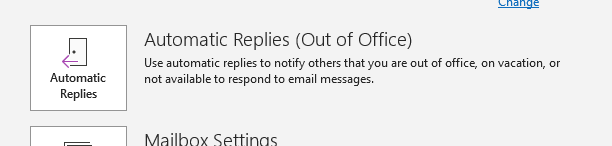
- Click on ‘Automatic replies’
3. Make sure both the ‘Inside my organisation’ tab and ‘outside my organisation’ tab have the same out of office message.
4. Click ‘send automatic replies’ and change the start and end dates to the correct dates and times
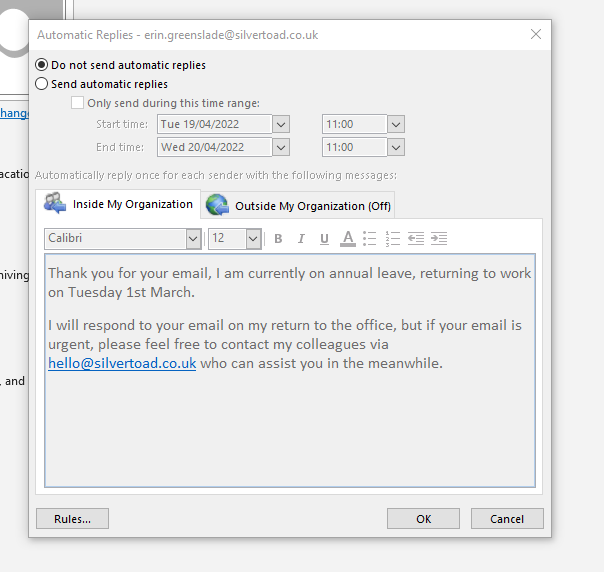
5. You can put the example below for your out of office:
Hi, thank you for your email. I am on annual leave with limited access to my emails.
I will respond to my emails upon my return on 01.01.2019 (obviously you need to put the correct date)
For anything that needs urgent attention, please email hello@silvertoad.co.uk
Thank you
Your Name