
Creating an Interactive PDF
Open a document in InDesign.
Text Fields:
- Use the rectangle shape tool to create area of text field.
- Right click > Interactive > Convert to Text Field.
- This can be reverse by clicking on ‘Convert to Object’ in the same menu.
- Text Fields can be copied and pasted with no issues.
Buttons:
- Window > Interactive > Buttons and Forms.
- Click on the top right hand menu button > Sample Buttons and Forms.
- To select one of these buttons, drag it onto the page.
- For each question, the group of buttons must have a different name i.e. R1, R2, R3 etc. Change the name and the function on the Buttons and Forms window.
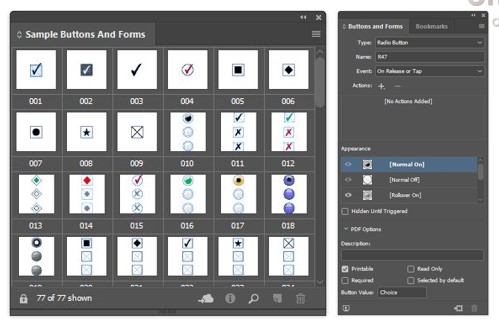
Once the form is complete:
- File > Export > Save as type: Adobe PDF (Interactive).
- Ensure Forms & Media: Include All in General > Options
Editing:
It is always best to edit in the original InDesign file, but if it’s not available you can edit the interactive fields in the PDF.
- Open the PDF > Tools > Forms > Edit