- Open the SEO Spreadsheet (in STUDIO folder)
- Get the black SEO physical folder with all the SEO Job bags in it
- On the SEO laptop, go to Rank Tracker
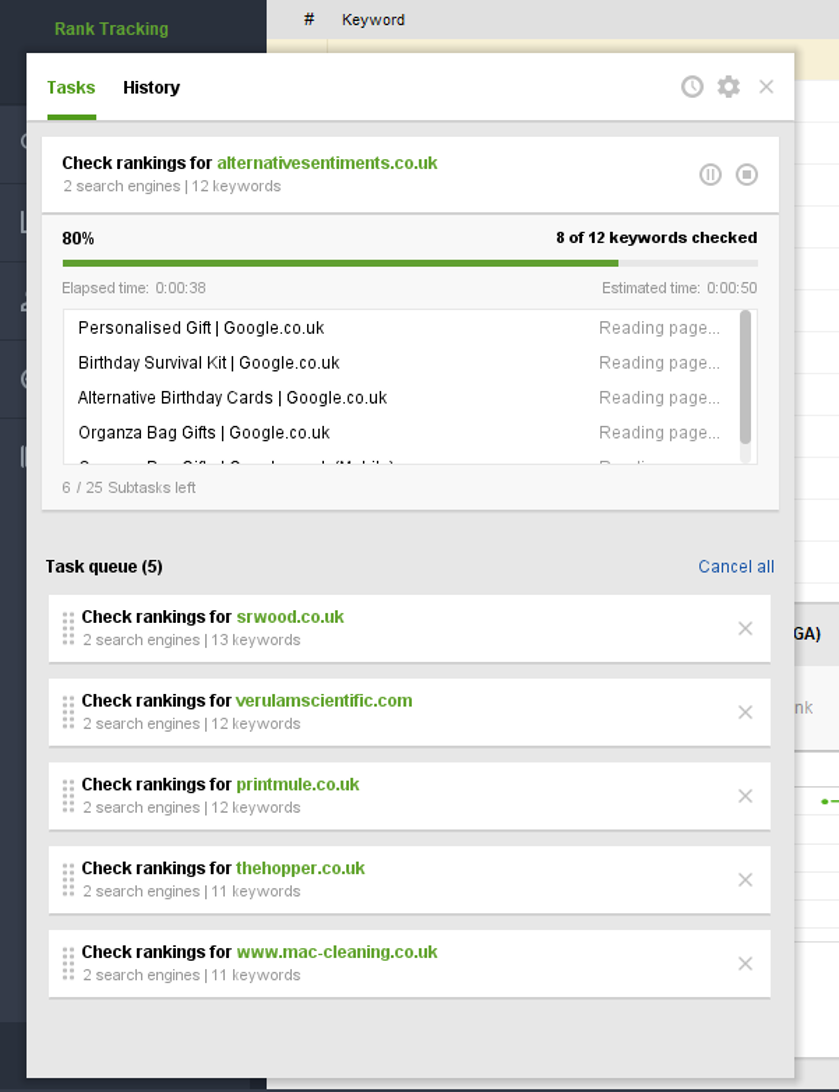
- In the top left corner, press Check All. This will add all campaigns to be rescanned, and can be indicated by the queue in the bottom right corner. Wait for this process to complete before continuing.
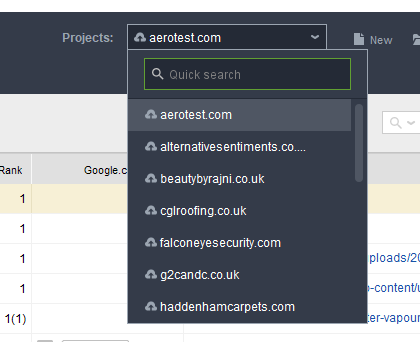
- Under Projects select the first campaign (A-Z) – also get out the job bag for this from the black SEO folder.
- On the left hand side, click Reports
- Press Publish
- Click Save to your hard drive, and press the little pencil. Amend the destination to a new folder called [month] [year] – Eg. Jan 2022
- Click OK, then Finish.
- Press Publish again
- Select Email as an attachment – ensure you can see the Client’s name in the “to” box

- Press Finish
- On the SEO spreadsheet, mark this campaign as complete. Use the individual boxes to indicate what has been completed. For this process, mark a Y in the R / Reports column. Also fill out the B/ Backlinks column and V/ Visibility column with stats from your report.
- Where the B column is highlighted yellow, you should instead get the backlink stats from Click Submit / Boost 366, as a new quarterly report will have been generated.
- On the job bag, tick the month you have just completed.
- Put the job bag back in its slot in the black folder, and repeat the process for the remaining SEO clients.
- Once all saved and sent, upload the reports to T Drive – OneDrive\SERVICES\SEO\0. SEO Reports\YEAR\MONTH