
Area Pages Plugin
Download the Silvertoad Area Pages plugin (in Silvertoad website root public_html).
When you want to make a page into an area page template, you’ll need to look in the page attributes editor (usually in the right sidebar):
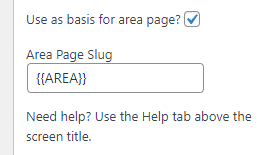
Check the box labelled ‘use as basis’ and enter the URL pattern you want for the pages in the box below.
For example:
Check the box labelled ‘use as basis’ and enter the URL pattern you want for the pages in the box below.
For Moderno, this is just {{area}} – so entering an area name (like modernoliving.co.uk/luton) will go to that page.
For Silvertoad, we could have area page URLs like ‘graphic-design-{{area}}’ (e.g. ‘graphic-design-houghton-regis’), ‘graphic-design/{{area}}’ (‘graphic-design/borehamwood’) or ‘{{area}}/graphic-design’ (‘peterborough/graphic-design’) depending on the structure that fits us best.
The area pages created by this plugin now appear on the WPMSEO XML sitemap (but not the HTML one).
Manual Method
Here’s what you’d need to do to run the area duplicator on a new site.
The file is in Silvertoad’s public_html/mt-testing/duplicate.php.
This will need to be copied onto the new site somewhere. The exact location doesn’t matter.
Most of the configuration is done at the top of the file.
If $dry_run is set to true, the script won’t actually create any pages, it’ll just list which pages it would have created.
$areas are the list of area pages to create. The page will be duplicated once for each of the areas in this list.
The next section, $posts, lists the key words to change.
The sections within /* and */ are comments and should be ignored.
The first non-commented number (16484) is the post id that will be duplicated. Create a template post with tags (it can stay as a draft) and copy the page ID here.
Within that, the tags that need to be replaced are listed. In the page content, title, and SEO tags, any tag that’s a word listed here plus curly braces (e.g. {SERVICE}, {SERVICE_LC}) will be replaced by one of the words within that tag’s section, selected at random. The tag {AREA} will be replaced with the area name (so you’d usually put this tag in the title to make sure pages have unique names)
If you need to replace images too, there are a couple more steps:
You’ll need to upload (to the media library) images for all the areas. Put some unique phrase in the name as well as the area (for ST, we used ‘Creative Graphic Design – Town Name’). The town names must be spelt and formatted exactly the same as the areas list in the script file.
In the script file, around line 221, change the text ‘Creative Graphic Design’ to the unique phrase you used for the image names. Any image not containing this phrase will be ignored to help prevent false matches.
Around line 203, add the image IDs that need to be replaced (where the 16044/16518 are now)
When you’re ready to run the script, just navigate to that page in the browser. There’s no authentication, so it’d probably be best to remove the duplicator script when you’re done.#
Providing dry_run isn’t set, the pages will be created, but they’ll be drafts. You’ll need to bulk publish them as a final step (after checking a couple to make sure they look okay).