
Desktop
- Go to Facebook.com and login with the Sam Turner credentials
- Once logged in, on the toolbar on the left hand side of the page, there will be a drop down with a list of clients accounts that we have control of.
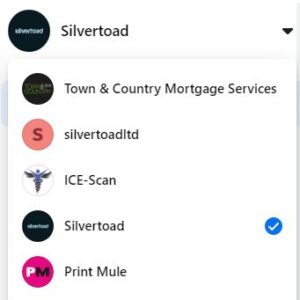
- Click this and choose the account you wish to remove access to
- On the left hand side toolbar there will be a new list of settings.
- Scroll down to the bottom and click ‘Settings’.
- Once again, there will be a new list of options on the left hand side toolbar.
- Click on page roles about half way down the list.
- A page similar to this will appear
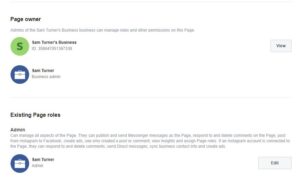
- Click edit.
- Click remove.
- Click confirm.
Mobile/Ipad App
- Open the Facebook app and login with the Sam Turner credentials
- In the bottom right corner, press menu.
- Press ‘Pages’ from the list. Here you will find the list of accounts that we control.
- Choose from the list the page you wish to remove access to.
- In the top right corner, click the settings symbol.
- Click on ‘Page Roles’ from the list.
- Click the pencil symbol next to the person you wish to remove.
- You may need to enter the password to the account again.
- Click remove.
- Confirm the removal.