
Set up a subdomain
- Login into Guru server using the credentials in LastPass
- Decide what account you want to develop your dev site on (either the dev.silvertoad.co.uk or build.dilvertoad.co.uk)
- Click on the the CP logo next to the account (either the dev.silvertoad.co.uk or build.silvertoad.co.uk)
- Under the domains section, click on subdomains
- In the subdomain bar put the name of the company
- Click on the Document Root bar and it will automatically create your dev subdomain
- Click create
Set up a database
Once the above step has been completed, go back to the cPanel page (make sure it’s still under the same dev account that you set up the subdomain)
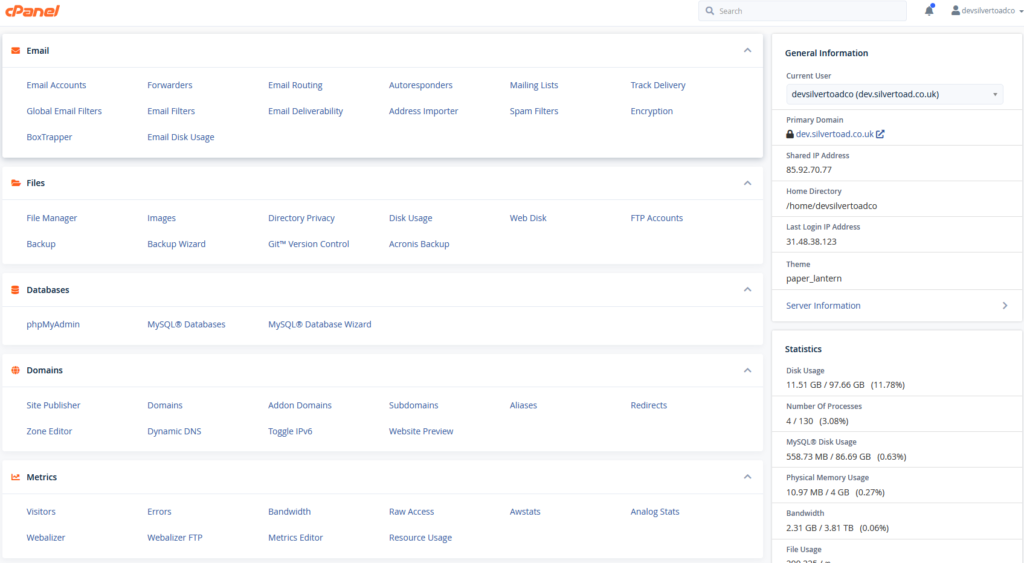
- Under the database section, click on MySQL Databases
- Under create a new database, name the new database with the name of the company
- Click create database
- Scroll down to the ‘Add user to database’ section
- In the ‘user’ dropdown select either devsilve_user or buildsil_user (depending on the account you are creating the development site on)
- In the ‘database’ dropdown select the development database you just created
- Click add
- Make sure you select allow all privileges
Add files
- Go to file manager
- Go to your subdomain folder
- In here, upload any files you’re putting the site in with. For example, you may download a WordPress installation file, this is where you would upload and extract it. https://wordpress.org/download/
- Extract files
Completion
Once you’ve followed the steps above, you should be able to access your website, or the introductory page for a CMS you’ve installed.