
Basic CSS for WP
When you build a WordPress website, you may want to style, adjust or customise your website. This is useful when using a theme, as it can make your website different from the theme you started from. It is also essential when building a website from scratch.
This SOM will take you through some basic CSS commands, how to find what to change, how to preview changes before you make them and how to add them to your website.
For this example, we will be using a theme to style.
Navigate to the front end of your website.
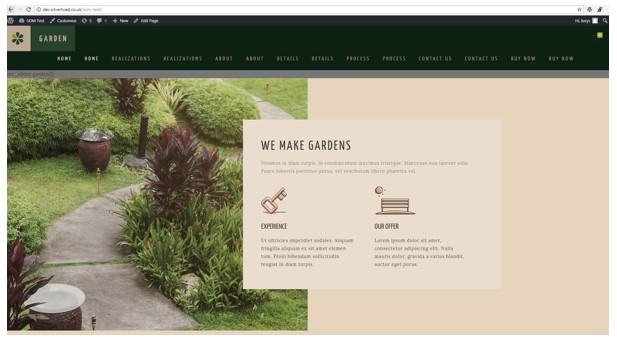
To open up the initial styling on your webpage, we are going to use the inspect tool. Right click on the element you want to change, and select INSPECT. This will open up a page of styling options. The rightmost pane is the options for the element you have just selected. If you hover a line of code it will highlight the element it applies to on the front end page.
Let’s say we wanted to change the colour of the header. Right click on the header and click inspect. For this, you’ll see the right hand style pane has an option for the background colour. Click on the little square, and you’ll be able to select a colour or insert the reference for it. Go to you website to see your colour change. DO NOT REFRESH THE PAGE OTHERWISE YOU WILL LOSE YOUR CHANGES.
If you are happy with your change, then you should navigate to your css file.
Go to an FTP client, such as FileZilla. (See the SOM for using the FTP)
In the very top left corner, click the dropdown arrow for Open the Site Manager, and you’ll see a list of site names. If your site is there, click on it. If it is a dev site, it will be in Dev.
Click OK on the box that pops up, and then click the file called public_html. If you are in Dev, click on the name of your site. Click wp-content. Click themes. Click the name of your theme (in most cases, betheme-child). Right click on style.css and select view/edit.
This will then open your CSS file in a word processor such as notepad or sublime.
If you have not yet added any CSS, your file may look like this:
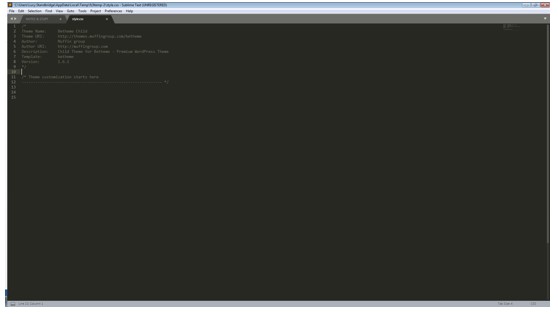
CSS code comes up in a variety of colours depending on the
command, though this isn’t important to know.
Go back to your inspect tool, and find the change you made. Here I’ve changed the
background colour to red. To keep this change, you need to copy the BLACK text (.header-classic #Top_bar) and go to your word processor and paste it in.
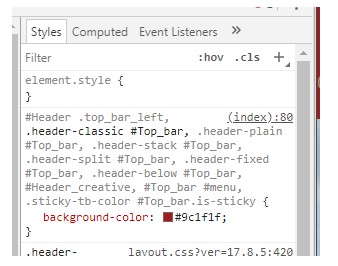
After your identifier (.header-classic #Top_bar) you need to add an opening curly bracket: {
Then, you can copy and paste the command which is coloured (background-color: #9c1f1f). Make sure you close the curly bracket too. You’ll need a new set of curly brackets for each command.
Click CTRL+S to save your edit.
Go to the FTP (FileZilla) and you’ll notice a pop up box which says if you want to upload to the server. Click YES.
Go to the front end of your page and force refresh (CTRL+F5) to see if your changes have been made.
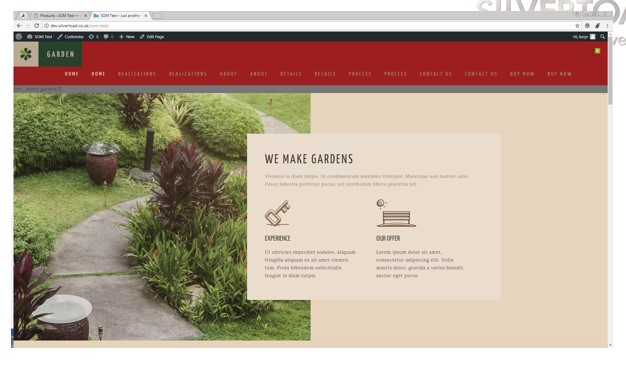
This process can be applied with most CSS commands. If you wish to
perform an action which you don’t know the CSS command for, search it on
the internet and there is bound to be some guidance. https://en.support.wordpress.com/custom-design/css-basics/
You can also add your own css commands to the inspect tool by clicking underneath the last already input class.